

Quick Answer

The best travel apps are the ones that do one job well, work when your signal does not, and do not charge you for features you will never use. For most trips, you do not need fourteen apps. You need six: one for navigation, one for your itinerary, one for flights, one for stays, one for money, and one for language.
That stack covers almost every moment of a trip: planning in one place, finding and tracking flights, managing your stay, navigating without data, paying and splitting costs, and reading signs and menus you cannot otherwise understand. Everything else is a duplicate or a nice extra for a very specific trip.
This guide starts with that six-app stack in a table you can compare at a glance, explains each job in turn, and covers the parts most app lists skip: what not to install, subscription traps, permissions, and a before-you-fly offline checklist. By the end, you should be able to delete a few apps with confidence, not add more.
A note on prices and features: apps change their plans often. Where this guide mentions a free version and a paid version, treat that as the general pattern, not a guaranteed price — check the current price in the app store before you pay for anything. The same applies to features: check that the offline mode, currency, or language you need is actually supported before you rely on it on the road.
The 6-app Stack

The table below is the whole argument of this article in one place. Each app has a single job. If two apps on your phone do the same job, keep the better one and delete the other.
| App | Job | Free vs paid | Works offline? |
|---|---|---|---|
| Google Maps | Navigation, walking routes, public transport, saved places | Free | Yes, with downloaded maps |
| TripIt | Itinerary in one place, from forwarded bookings | Free; Pro is paid | Yes, saved trips can be viewed offline |
| Skyscanner | Flight search and price tracking | Free to search | No, needs a connection to search |
| Booking.com | Stays, booking management, check-in details | Free to use; you pay for the stay itself | Partly, saved bookings can be viewed offline |
| Wise | Currency conversion, holding and spending abroad | Free to open; fees vary by currency and route | No, needs a connection for live rates and payments |
| Google Translate | Language, camera translation, conversation mode | Free | Yes, with downloaded languages |
Why these six? A trip breaks down into repeated tasks, and each deserves exactly one tool. You navigate and check your plan many times a day, search flights intensively before a trip, manage a stay and check in, convert prices and split costs, and hit a language barrier at least once on most trips.
Notice what is not in the stack: no separate packing, currency-converter, restaurant, or weather app. Those jobs are covered by one of the six or by your phone’s built-in tools, or needed so rarely that they do not deserve permanent space. A smaller stack also means fewer accounts, passwords, permissions, and less battery drain.
The rest of this guide explains how to use each part of the stack well. If you already use a different app for one of these jobs and it works, keep it — the point is the job, not the brand, and one app per job, not three.
Planning and Itineraries

Planning is where most trips quietly go wrong, not because people fail to plan, but because the plan lives in five places: an inbox, a notes app, screenshots, a group chat, and a buried confirmation. An itinerary app fixes that by pulling bookings into one timeline.
TripIt is the most widely used example. You forward flight, hotel, car, and activity confirmations to it, and it builds a day-by-day itinerary with times, addresses, and booking references. The free version covers that core job well for most travellers. The paid version, TripIt Pro, adds extras such as fare tracking, refund alerts, and seat and flight alerts — check the current price in the store and ask yourself whether you actually fly often enough to need them. For one or two trips a year, the free version is usually enough.
A simpler alternative is to build your plan in a document or spreadsheet using a clear structure. If you prefer that route, a Travel Itinerary Template gives you a day-by-day outline you can reuse for any trip, with space for transport, stays, and activities. The method matters more than the tool: one plan, in one place, that everyone travelling with you can see.
Whichever route you choose, follow three rules. First, put fixed times in the plan — flights, check-ins, tours, reservations — and leave the rest flexible. Second, add addresses and booking references, not just names: “Hotel in Rome” is useless at midnight. Third, make the plan available offline, so a dead signal at an airport does not leave you stranded.
Flights and Price Tracking

Flight search apps earn their place before the trip, not during it. Their job is to compare fares across airlines and dates, and to tell you when a price moves. Skyscanner is a good example of the pattern: search broadly, compare by month or by cheapest dates, and set a price alert for the route you actually want.
Use flight apps in a particular order. First, search flexibly. If your dates can move by a day or two, check the cheapest month view before you fix a date — a one-day shift can change the fare more than any discount code. Second, compare the total, not the headline fare. Check baggage, seat selection, and airport before you call one option cheaper than another. A low fare to a distant airport with a paid bag can cost more than a slightly higher fare to the main airport with a bag included. Third, set an alert and then stop checking every hour. Price alerts exist so you do not have to watch fares yourself, and constant checking rarely saves money.
When you find a fare you like, decide whether to book through the app or directly with the airline. Booking directly with the airline usually makes changes, refunds, and customer service simpler if something goes wrong, because there is no middleman in the chain. Booking through a third party can sometimes be cheaper, but read the change and cancellation terms before you pay, and keep the booking reference in your itinerary app either way.
Price tracking has limits: alerts cover only the routes you set, and fares can rise as well as fall. An alert is a prompt to decide, not a promise of a further drop. If the fare fits your budget and dates, booking it is often better than waiting for a lower price that may never arrive.
Finally, keep your flight app after booking for a different job: live status. Checking departure times, terminal changes, and delays in the app before you leave for the airport saves a wasted journey, and it is faster than searching for the information at the airport.
Stays

A stays app does three jobs: finding a place, managing the booking, and getting you through check-in. Booking.com is the most widely used example, and its strength is breadth — hotels, guesthouses, apartments, and hostels in one search, with filters for price, location, rating, and cancellation policy.
Search with your real constraints, not just the lowest price. Filter first by cancellation policy if your plans might change, then by location, then by price. A cheap room an hour from the places you want to visit is rarely cheap once you add transport time and fares. Read recent reviews rather than only the overall score, and look for repeated mentions of the same problem — noise, cleanliness, or misleading photos — rather than one angry review.
The booking details matter more than the search. Save the address, check-in times, and any access codes in your itinerary app, and check whether check-in is staffed or self-service. If you arrive late, self check-in details are essential, and they are often buried in a message you will not find without a connection. Screenshot or save the check-in instructions before you leave.
Alternatives suit specific cases: Airbnb for longer stays, groups, or a kitchen; direct hotel booking sometimes brings a better rate or more flexible cancellation. Either way, keep every stay in your itinerary app — booking across three platforms means spending the trip hunting for confirmations.
One more practical point: do not rely on a stays app alone for proof of booking. Keep the confirmation email as well, and carry the booking reference separately. Apps can log you out at the worst moment, and a reference number works even when an app does not.
Navigation and Offline Maps
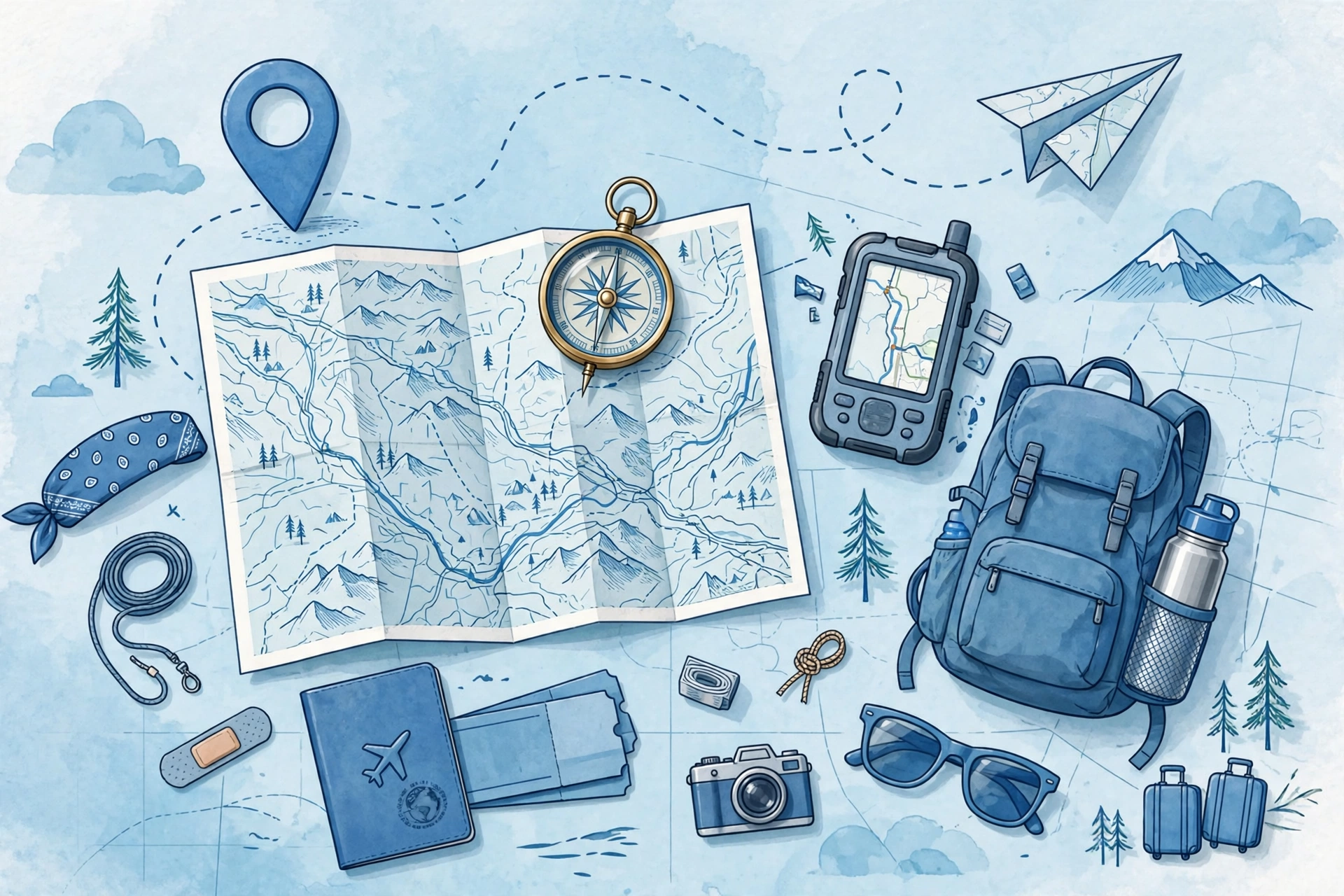
Navigation is the app you will use most on a trip, and it is the one where offline preparation pays off most. Google Maps is the default choice for most travellers because it covers walking, driving, and public transport in one place, lets you save places, and lets you download whole areas for offline use.
Download your maps before you leave, not at the airport. Open the app, search for your destination city, and download the area that covers your hotel, the main sights, and the airport or station. Do this on Wi-Fi at home or at your hotel, because map downloads are large and slow on mobile data. Test the download by switching your phone to flight mode and searching for your hotel — if it works in flight mode, it will work on the street.
Saved places are the second half of good navigation. Before you travel, save your hotel, the airport or station, and any restaurant, museum, or meeting point you will visit — they show up in your offline map and save you typing addresses in a foreign language on the pavement.
Public transport directions are only as good as local data: excellent in most large cities, patchy in smaller towns and rural areas. Check the local situation in advance and keep a screenshot of the route as backup.
Alternatives exist and are worth knowing. Apple Maps is a solid choice on iPhones, especially for walking directions. Maps.me and similar offline-first apps suit travellers who expect long stretches without data, such as hikers or road-trippers in remote areas. The principle is the same whichever you choose: one navigation app, maps downloaded in advance, key places saved.
Money, Currency and Splitting Costs

Money is where a good app saves real cash, not just time. The core jobs are converting prices, paying abroad without heavy fees, and splitting costs fairly when you travel with others.
Wise is a strong example of the pattern. It lets you hold and convert multiple currencies, shows the exchange rate before you pay, and gives you a card you can use abroad. The key habit is checking the rate and the fee before a transaction, not after. Bank cards and airport exchange desks often hide their margin in a poor rate rather than an obvious fee, so a rate that looks free can still be expensive. Compare the total cost — rate plus fee — rather than the fee alone.
For splitting costs, agree on one shared method on day one. Apps such as Splitwise let everyone log what they paid and work out who owes whom at the end, instead of settling every meal on the spot. If your money app already handles shared balances, use that instead — one job, one tool.
Cash still has a place: some markets, small restaurants, and rural areas are cash-only. Take a small amount of local currency, keep it in a wallet or a savings jar at your accommodation for daily spending, and set a daily cash limit before the trip.
Budgeting ties the money apps together. Before you travel, set a total budget, break it into flights, stays, food, transport, and activities, with a contingency for surprises. How to Prepare a Travel Budget gives a step-by-step method. The app helps you follow the plan; it does not replace it.
Finally, tell your bank you are travelling if it asks, set a transaction alert for your travel card, and know how to freeze the card from the app. Losing a card abroad is stressful enough without also hunting for a phone number to block it.
Language and Translation

Language apps turn a barrier into a minor inconvenience. Google Translate is the most widely used example, and its most useful features are the ones people forget to set up before they need them: downloaded languages for offline use, camera translation for signs and menus, and conversation mode for talking with someone in another language.
Download the languages you need before you leave, on Wi-Fi, and test them in flight mode. Camera translation is the feature that saves the most time in practice — point your phone at a menu, a sign, or a ticket machine, and the translation appears over the original text. It is not perfect, and it struggles with handwriting and stylised fonts, but it is usually good enough to tell you whether a dish contains something you cannot eat or which platform your train leaves from.
Conversation mode works best when you speak slowly, in short sentences, and let the other person do the same. It is a tool for practical exchanges — directions, prices, dietary needs, hotel requests — not for deep conversation, and that is fine. For those practical exchanges, a few learned phrases still beat an app: hello, thank you, please, how much, and “I do not eat…” in the local language go a long way and cost nothing.
A translation app also helps with written communication you might not expect: reading a hotel notice, understanding a museum label, or working out what a road sign means. Keep the app on your home screen during the trip, not buried in a folder, because you will reach for it in moments when you do not want to search.
Alternatives such as DeepL and Microsoft Translator are strong for certain language pairs. If you already use one and it covers your languages offline, keep it — one translation app is enough.
Safety and Emergencies

Safety is not a separate app in the stack, and that is deliberate. The most important safety tools are already on your phone, and the most important safety information is saved before you leave, not downloaded in a crisis.
Start with three saved items. First, your travel insurance details: policy number, emergency assistance number, and what is covered. Save them in your itinerary app and as a screenshot, not only in the insurer’s app, so you can find them even if you are logged out. Second, the local emergency number for your destination — it is not 112 or 911 everywhere, and knowing the right number in advance matters more than any app. Third, the address and phone number of your accommodation and your embassy or consulate, saved in your maps app and your itinerary.
Your phone’s built-in features do the rest: limited-time location sharing with a trusted person, Medical ID showing allergies and emergency contacts even when locked, and emergency calling that works without a SIM in many countries.
If you do use a safety-specific app, use it for one clear reason: for example, a government travel advisory app for your own country, or your insurer’s app if it offers direct claims and assistance chat. Do not install a general “travel safety” app that duplicates information you already have in your itinerary, maps, and insurance details, and do not grant a safety app constant background location access unless you understand why it needs it and you actually want that trade-off.
Finally, keep a low-tech backup: a card in your wallet with your hotel address, an emergency contact, and critical medical information works when your phone is dead, lost, or stolen.
What NOT to Install
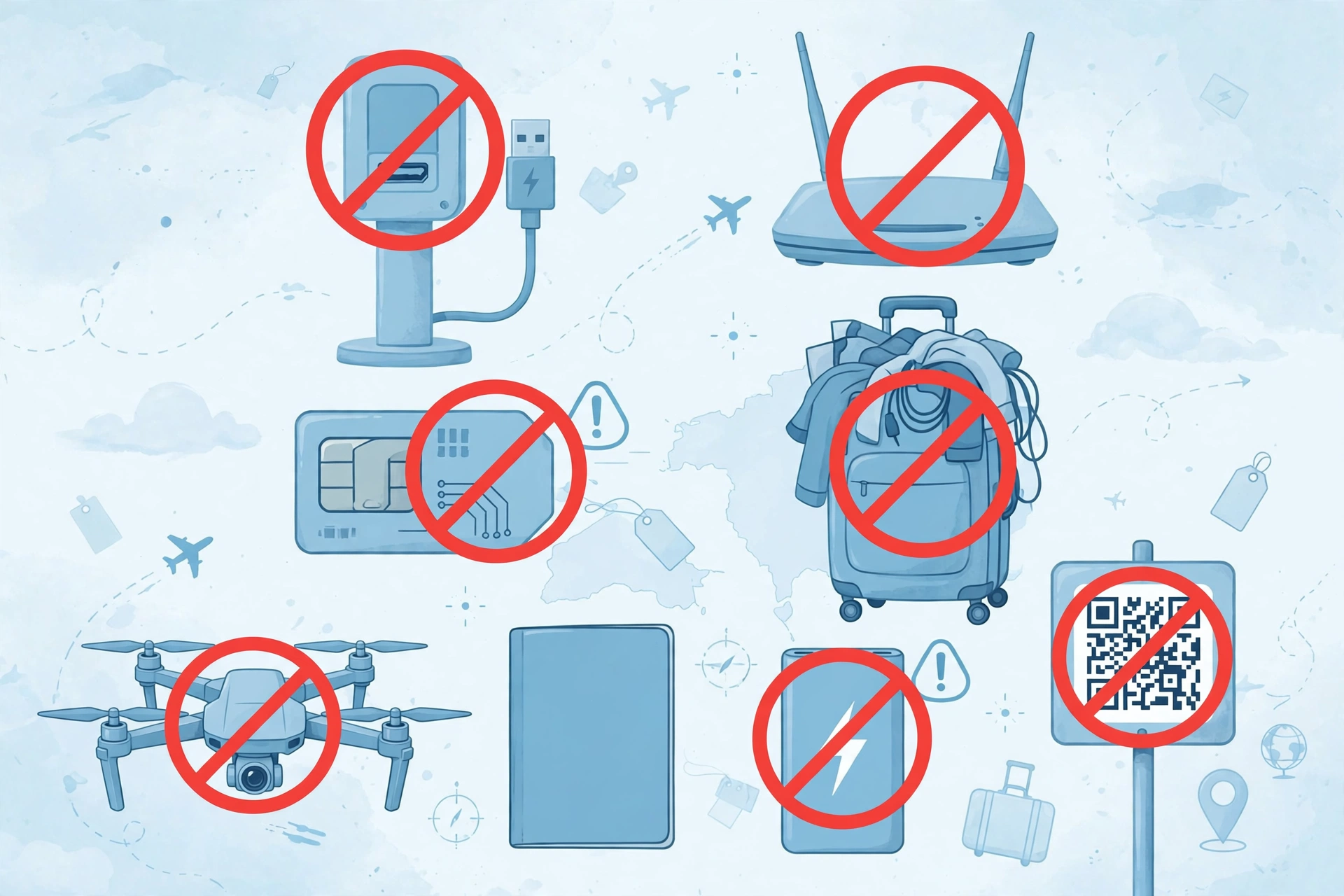
Deleting apps is as useful as installing them. Most travellers carry several apps that duplicate a job already covered by the stack, charge a subscription for a one-off need, or ask for permissions they do not need. This section covers the three traps to watch for.
First, overlapping apps. If you have two flight apps, two hotel apps, two currency converters, and two translators, you have not doubled your options — you have doubled your accounts, notifications, and chances of finding conflicting information. Audit your phone before a trip: list every travel app, write down its job, and delete any app whose job is already covered. Keep the one you actually use, not the one with the nicest icon.
Second, subscription traps. Many travel apps offer a free trial that converts to a paid subscription, or a “Pro” tier that sounds essential but covers features you will use once. Before you pay, check three things: what the free version already does, whether the paid feature is something you need on this trip or only sounds useful, and how to cancel. Set a reminder to cancel a trial the day you start it, not the day it expires, because expiry reminders have a habit of arriving too late. And remember the store rule from earlier: check the current price in the store before you pay, because prices and trial terms change.
Third, permissions and privacy. A travel app does not need your contacts, photos, microphone, and background location just to show a map or convert currency. Grant permissions one at a time, only for a reason you understand. Location “while using the app” is usually enough; “always” access is rarely needed. A currency converter that wants your contacts is a sign to delete it, not accept.
Finally, delete single-trip apps when the trip ends: a local transport app for one city or a festival app for one weekend is worth installing for that trip, but afterwards it only keeps asking for location and cluttering your phone. The stack should get smaller after each trip, not larger.
Before-You-Fly Offline Checklist
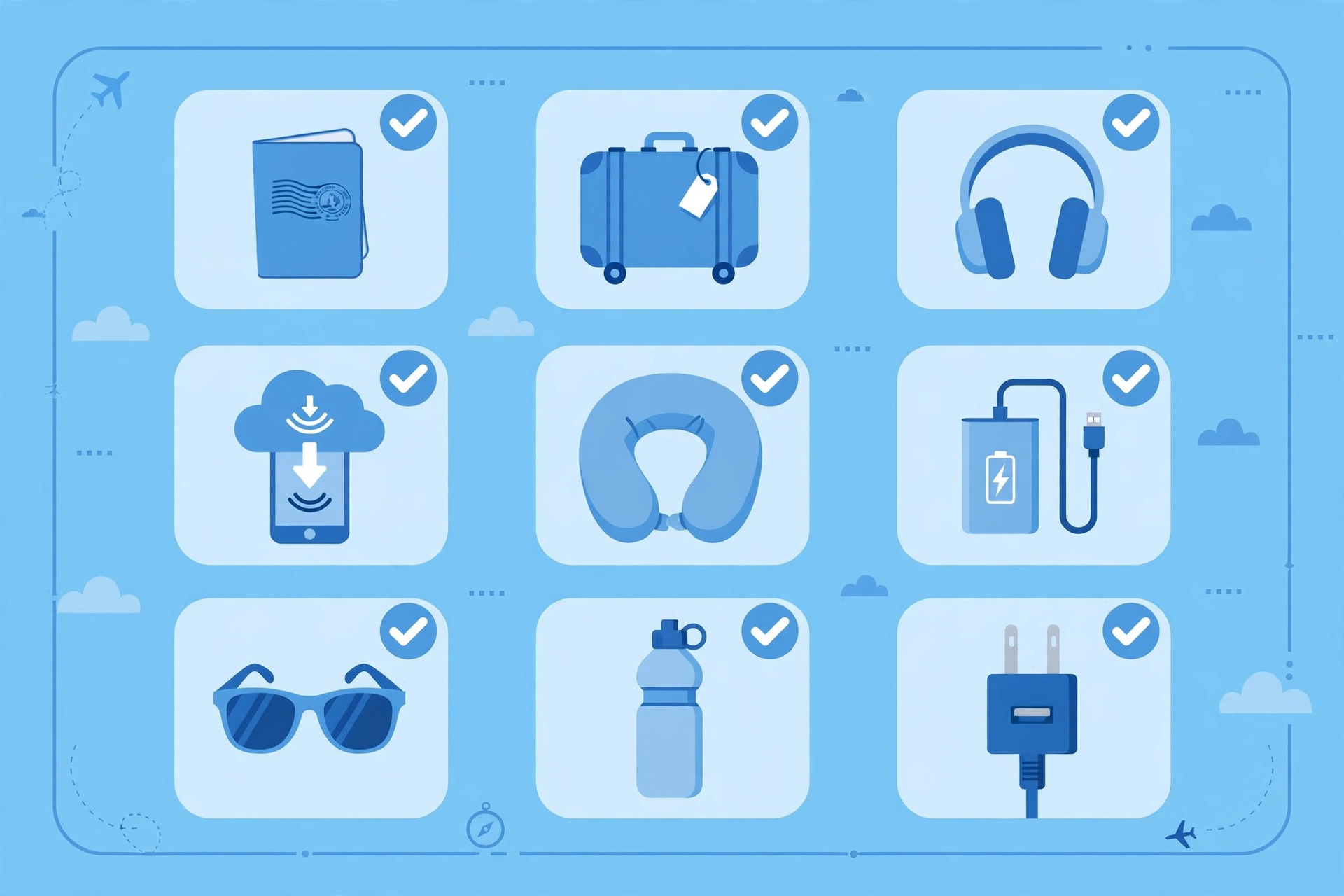
This is the checklist most app lists never give you. Work through it the night before you fly, on Wi-Fi, with your phone plugged in.
- Download offline maps for your destination city, including your hotel, the airport or station, and the main sights — and test them in flight mode.
- Download the languages you need in your translation app, and test camera translation in flight mode.
- Save your itinerary offline, or screenshot the key days: flights, hotel address and check-in details, and booking references.
- Save your travel insurance details, emergency numbers, accommodation address, and embassy or consulate details where you can find them without a connection.
- Download any boarding passes, tickets, and reservation confirmations, and screenshot them as a backup.
- Check that your travel money app is set up, your card is activated for travel, and you know how to freeze it from the app.
- Update all six stack apps, and delete any travel app you are not taking on this trip.
- Review app permissions: location “while using” for navigation, and nothing an app does not need.
- Charge your phone and, if you carry one, your power bank — and pack the right cable and adapter.
- Tell someone at home your plan, or share your itinerary with them, so someone else knows where you are meant to be.
If you do nothing else from this guide, do this checklist. It takes about twenty minutes, and it turns a phone from a device that needs a signal into a travel tool that works anywhere.
FAQ
Do I really only need six travel apps?
For most trips, yes. The six jobs cover the tasks you repeat every day. Extra apps are worth adding only for a specific need, such as a hiking app for a trek or a local transport app for one city, and they should be deleted when that need ends.
Which travel app should I download first?
Start with navigation and your itinerary app, because you will use them from the moment you land. Download offline maps and save your hotel and transport details before you leave, then add flights, stays, money, and translation around them.
Are free travel apps good enough, or do I need the paid versions?
Free versions cover the core job for most travellers: searching, booking, navigating, and translating. Paid versions add extras such as fare alerts, refund tracking, or advanced itinerary features. Check the current price in the store, and pay only if the extra feature solves a problem you actually have on this trip.
Do travel apps work without internet?
Some do, partly. Offline maps and downloaded languages work without a connection, and saved itineraries and bookings can usually be viewed offline. Flight searches, live prices, and payments need a connection. That is why the offline checklist above matters: download before you fly, and do not assume a signal will be there when you need it.
Is it safe to pay through travel apps?
Paying through a well-known app with a card and transaction alerts is generally safe, but check the total cost — rate plus fee — before you pay, and use a card you can freeze from the app. Avoid saving card details in apps you rarely use, and be cautious with public Wi-Fi for payments: use mobile data or a trusted network for anything involving money.
Should I let travel apps track my location all the time?
Usually not. Location access “while using the app” is enough for navigation and nearby searches. Constant background access drains battery and shares more data than most trips require. Grant it only for a specific reason, such as a safety feature you have deliberately switched on, and switch it off when the trip ends.
Conclusion
A good travel app stack is small, deliberate, and prepared before you leave. Six apps — one each for navigation, itinerary, flights, stays, money, and language — cover almost every trip, and the offline checklist turns them from a convenience into a reliable tool. Delete the duplicates, skip the subscriptions you do not need, check permissions before you fly, and keep one plan in one place. Travel with less on your phone, and you will have more attention for the trip itself.


Other Articles

Travel Itinerary Template: Plan Any Trip Without the Stress